Podmod AI transforms podcast production by providing real-time content during your recording sessions. Podmod AI acts as an intelligent co-producer, delivering relevant information, fact-checking, and content suggestions as your conversations unfold naturally. This comprehensive guide will walk you through every feature and teach you how to maximize Podmod AI's capabilities for professional-quality podcast production.
Getting Started: Setting Up Your Podmod AI Account
Step 1: Account Creation
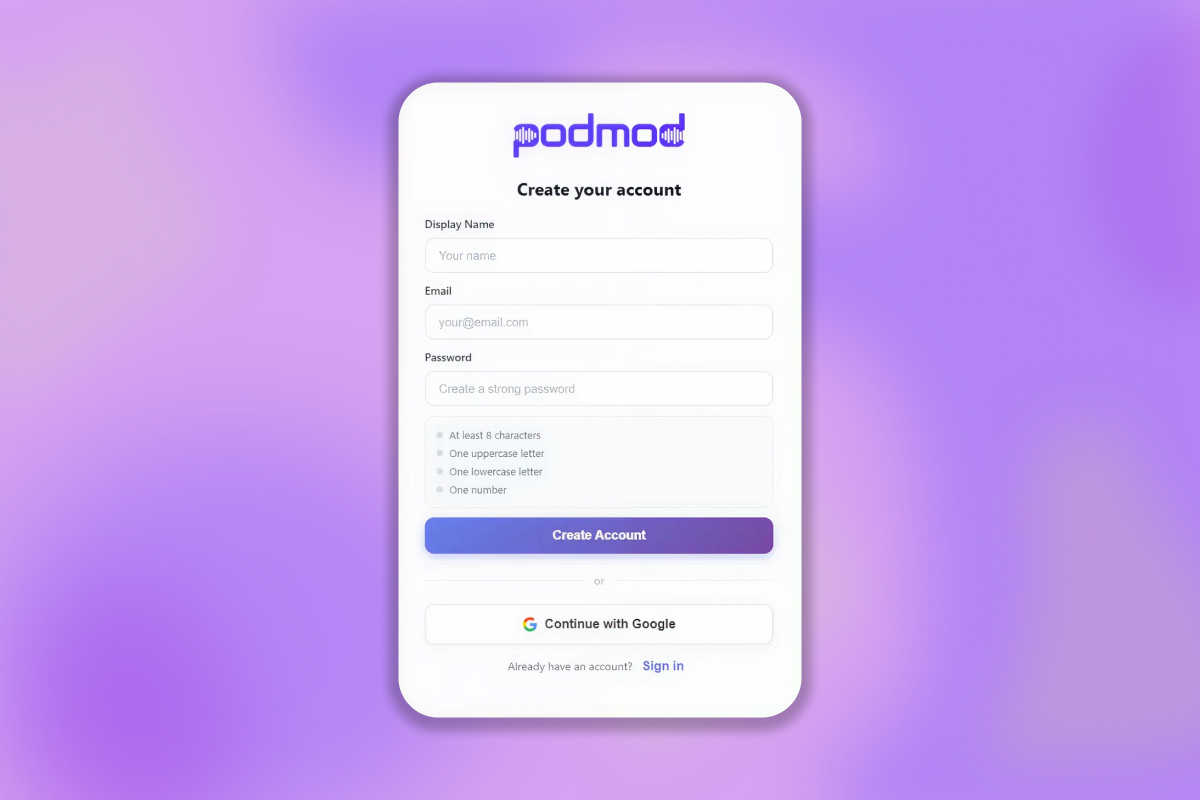
Create Your Account: Sign up at app.podmod.ai and complete your profile setup.
Step 2: Recording Environment Preparation
Technical Requirements:
-
Stable internet connection: Real-time features require reliable connectivity
-
Modern web browser: For example, Chrome, Firefox, Safari, or any other up-to-date, supported browser
-
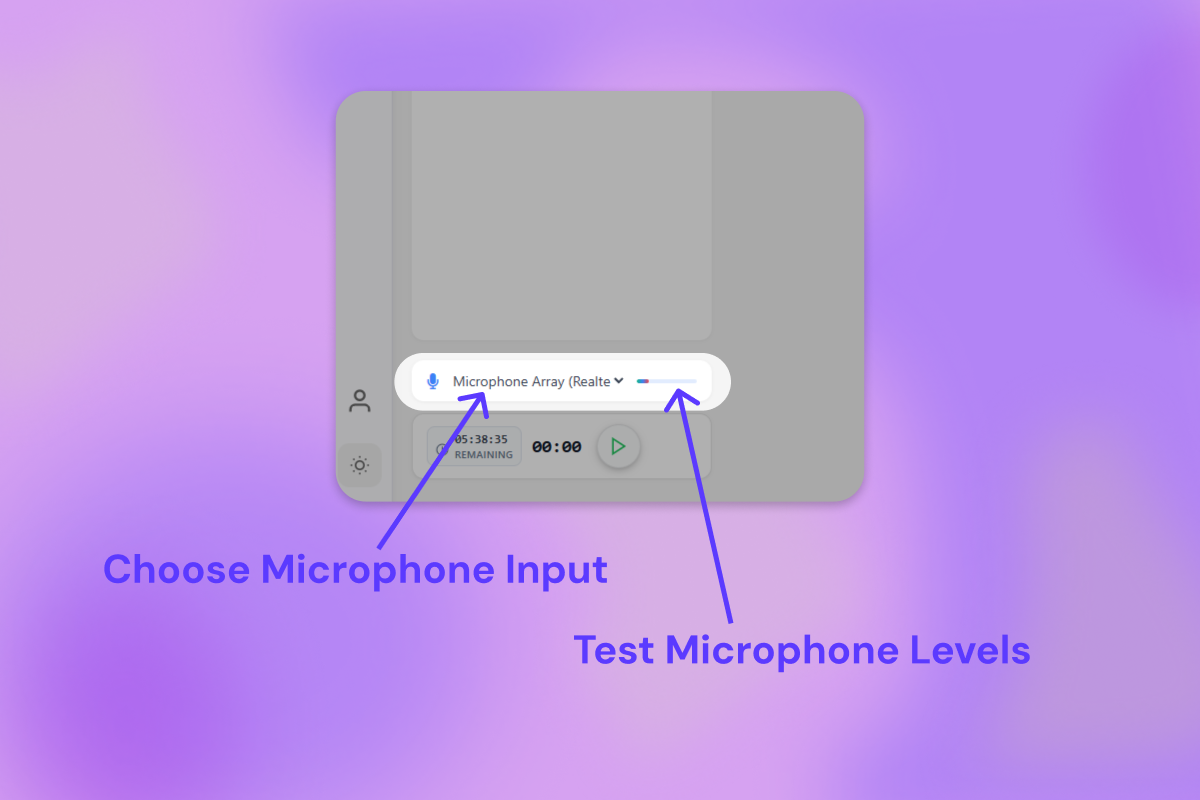
Microphone setup: Quality microphone that accurately captures your voice
Browser Setup:
-
Enable microphone permissions when prompted
-
Test audio input levels before recording sessions
Step 3: First Session Configuration
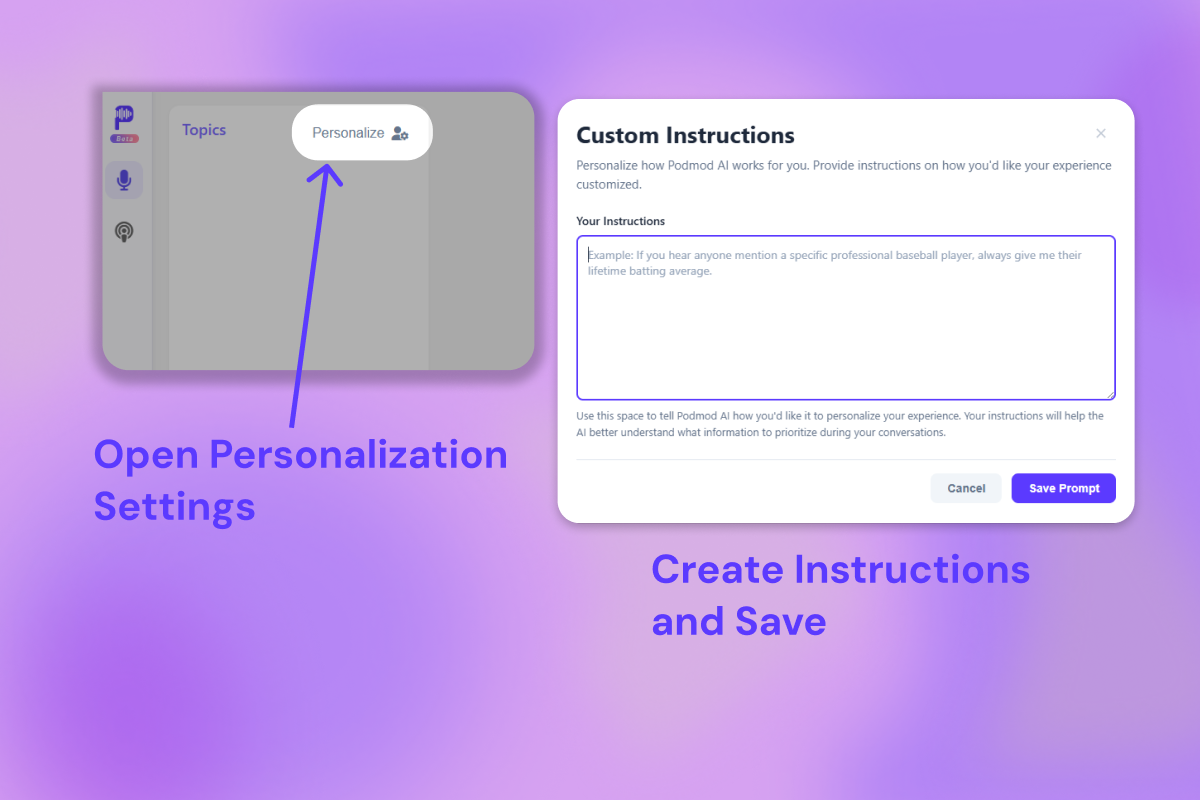
Personalization Settings: Set up how Podmod AI tailors its assistance to your needs:
-
Describe your show and audience in plain language. Include your format (interviews, solo, roundtable), niche (e.g., startup tech, true crime, NBA analysis), and who you’re speaking to, so Podmod can choose context that fits your listeners.
-
Use “when I mention X, do Y” instructions. Tell Podmod exactly what to surface for common topics (players, companies, cases, products, research, etc.) so every card feels handcrafted for your workflow.
-
Start focused, then refine over time: Begin with a few high-impact rules (stats, news, timelines), record a couple of episodes, then tweak your instructions based on what you found most useful in the moment.
Example Personalization Prompts
1. Tech Interview / Startup Podcast
“This is a weekly interview podcast about startups, SaaS, and developer tools. My audience is founders, operators, and senior engineers who care about practical tactics and real-world examples.
When I mention a company or product, surface: recent funding/news, product overviews, pricing pages, competitor comparisons, and any notable outages or controversies.
When I mention a guest, show: their latest work (posts, talks, launches), LinkedIn/bio summaries, and notable quotes or opinions on relevant topics.
Prioritize: clear summaries, product breakdowns, and concrete examples over generic SEO articles. Avoid consumer-oriented content and anything unrelated to B2B tech, SaaS, or startups.”
2. True Crime / Investigative Podcast
“This is a narrative true crime podcast for listeners who enjoy deep, well-sourced investigations. Accuracy, sensitivity, and context are critical.
When I mention a case, person, or location, surface: a concise timeline of events, key dates, credible news articles, court documents, and any major updates.
Prioritize: reputable news outlets, legal records, and verified reports. De-emphasize speculation, tabloids, and unverified forums.
Always help me quickly verify names, dates, and locations, and highlight any conflicts between sources so I can clarify them on-air.”
Using Podmod AI During Recording Sessions
Recording with Live Content Cards
Understanding Content Card Types:
AI Answer Cards: Instantly provide concise, AI-generated answers and summaries related to topics you mention. These cards are crafted on-the-fly to clarify concepts, offer definitions, or respond to quick questions—saving you from searching mid-conversation. In-line citations are also provided so you know exactly where the information is coming from.
Image Cards: Display contextually relevant images that illustrate the people, places, events, or products you’re discussing. Perfect for quick reference, visual storytelling, or sharing with your audience during or after the session. Click an image to open it full screen.
Video Cards: Surface short video clips, news footage, tutorials, or interviews directly related to your topic. Use these for deeper research, inspiration, or to verify information visually during or after recording.
Web Search Cards: Highlight up-to-date articles, research papers, blog posts, and news relevant to your discussion. These help you dive deeper, cite reputable sources, or easily capture URLs for your show notes or website.

Interacting with Content Cards
Reviewing Cards During Recording:
-
Quick glance: Check card titles and key points whenever you need more context. There's no need to read all of them.The conext is there when you feel you need it.
-
Deep dive: Open images full size right on screen, click the footnotes within the AI Answers cards to review the sources, or click the "outlink" button to view more sources, images or videos.
-
Hide cards: Collapse cards that you don't want to see by clicking the caret (^).
Best Practices: - Don't interrupt natural conversation flow to read every card - Use cards as prompts for deeper exploration when appropriate - Address fact-checks as you see fit or note them for clarification
Topic Timeline
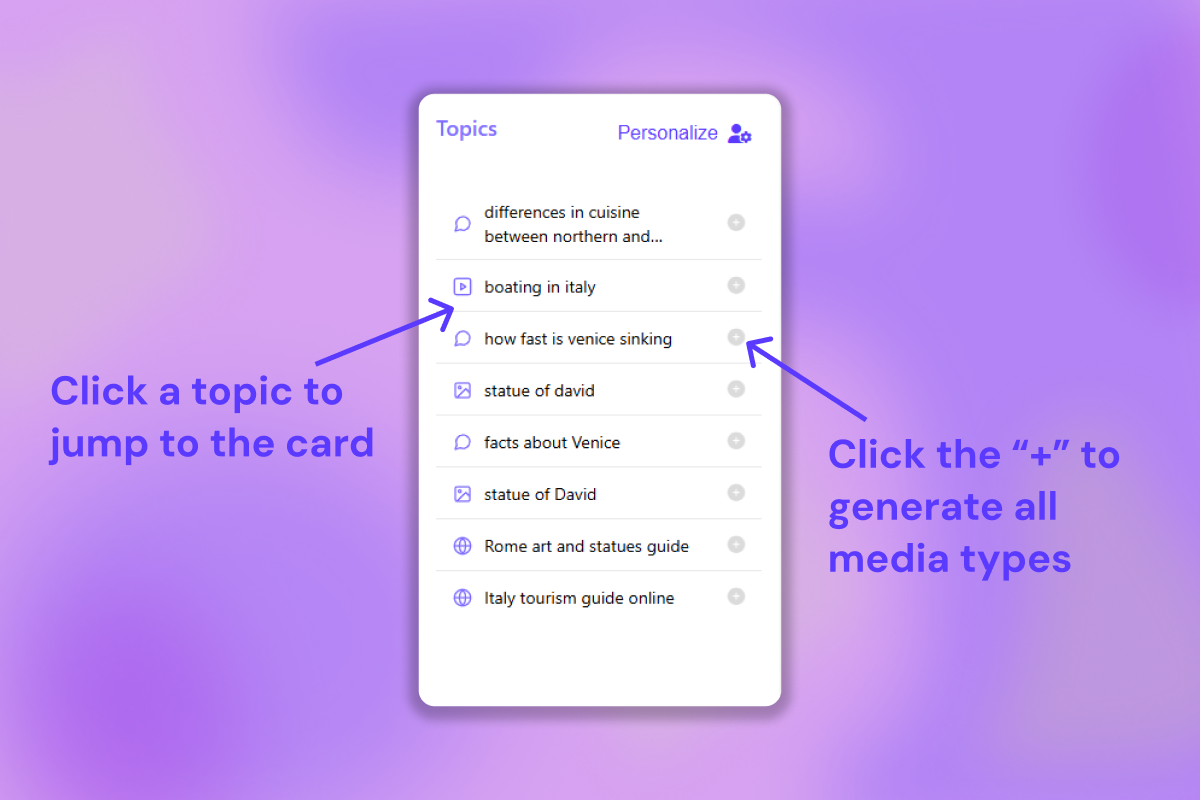
The Topic Timeline is your high-level control panel for the entire episode. It lays out all the topics covered in your podcast in a clean, scrollable list, so you can quickly scan what you talked about and where.
Browse topics at a glance: Scroll through the timeline to see every topic Podmod picked up from your episode, in chronological order.
Jump straight to the card: Click any topic in the timeline to instantly jump to that topic’s content card—no hunting around the page.
Generate all media in one click: Hit the “+” button next to a topic to generate all supported media types for that topic (images, videos, articles, AI answers) in one shot.
Use the Topic Timeline as your “map” for each episode—it keeps everything organized and makes it easy to decide which moments to turn into content.
Starting, Pausing, and Stopping Your Recording
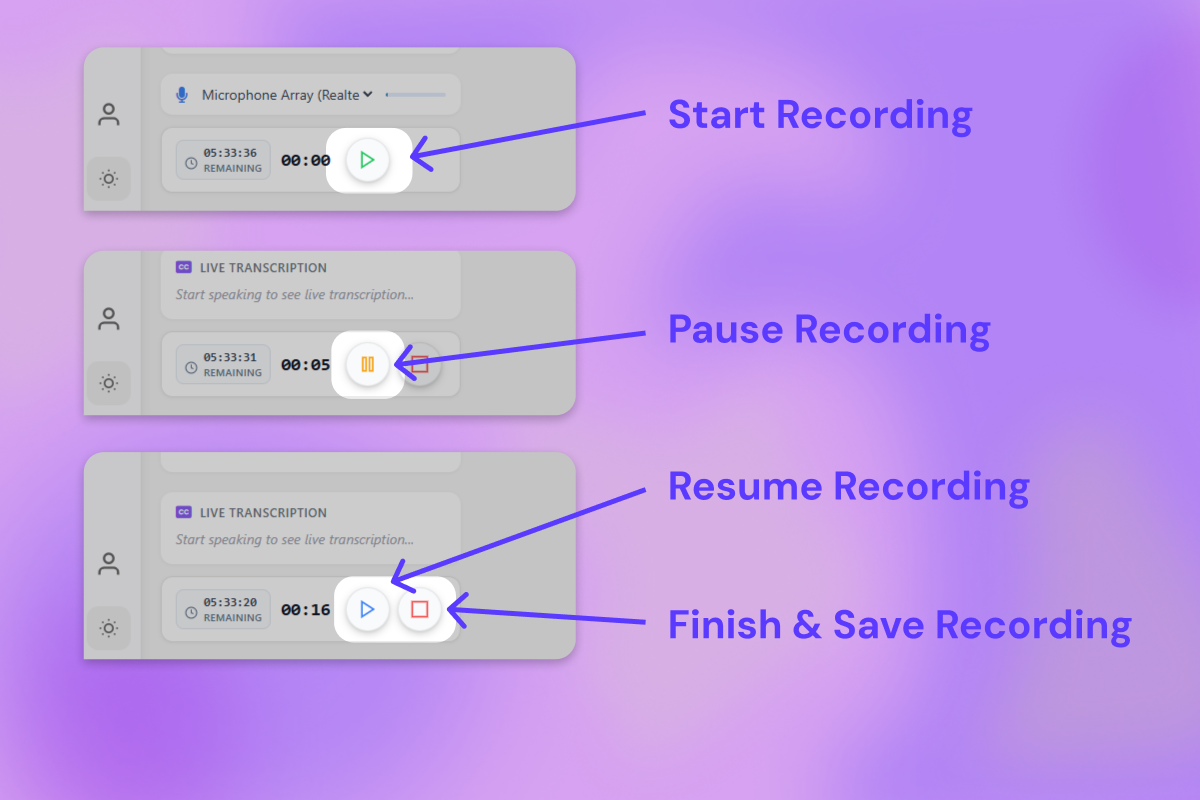
Control your session seamlessly with the intuitive recording controls located in the bottom-left of the screen:
- Start Recording: To begin capturing your episode, simply click the play (▶) button. The play button initiates your recording whenever you're ready.
- Pause Recording: Need a quick break, want to regroup, or have to handle a technical issue? Click the pause (⏸) button at any time to temporarily halt recording. You can resume whenever you’re ready—no need to start a new file.
- Stop Recording: Finished with your episode or segment? Click the square stop (■) button in the same control panel. This ends and automatically saves your recording, so your work is always preserved and ready for editing or publishing.
These simple controls give you total flexibility and peace of mind, making it easy to start, pause, and stop your recording whenever you need—whether you’re capturing an entire episode in one take or managing multiple segments.
Recording History: Your Podcast Archive
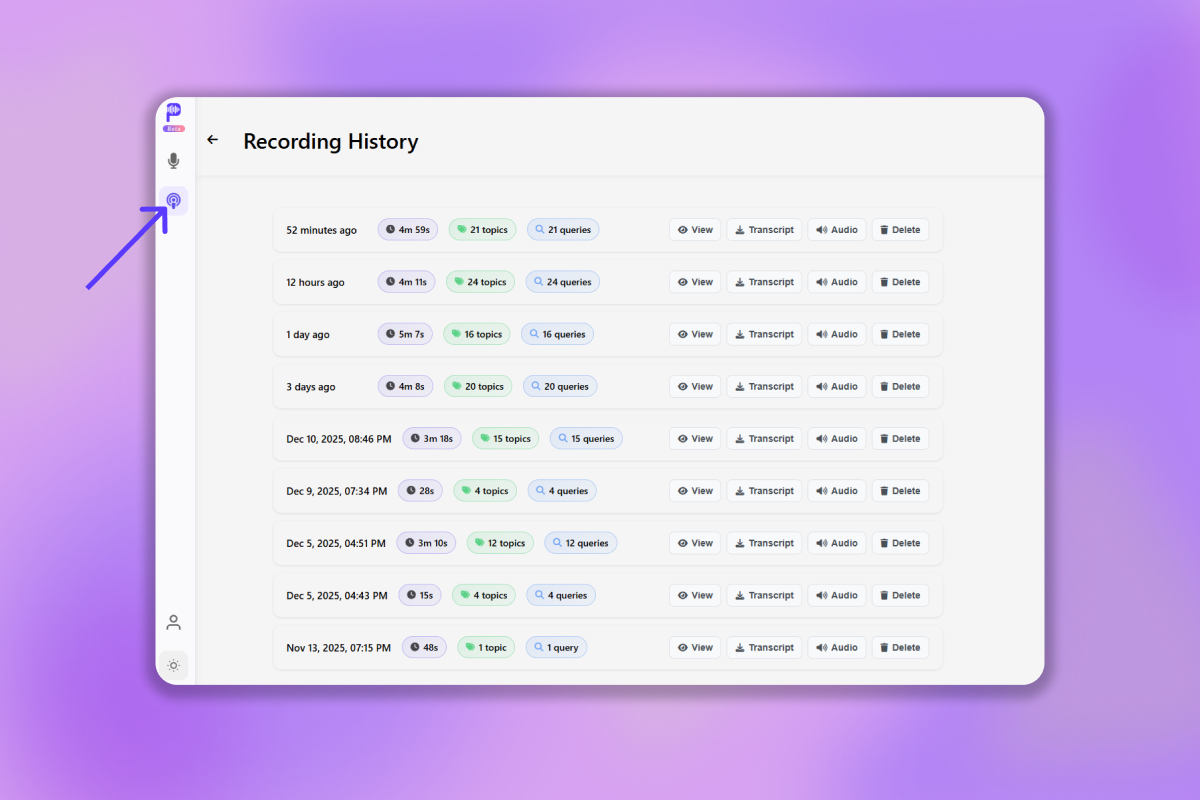
The Recording History page (look for the podcast icon in the sidebar) is your central archive—every session you record is safely stored here for easy access and review.
Key features of the Recording History page:
- Browse all past recordings: Instantly see a chronological list of every episode or segment you’ve recorded. Each entry shows the recording date and duration at a glance.
- Detailed session review: Click any recording to dive back into its full suite of content cards—AI Answers, images, videos, and articles—all exactly as they appeared during your session. Perfect for post-show research, sharing with collaborators, or fact-checking after the fact.
- Download your work: Each recording detail page includes options to:
- Download the full transcript (in .txt): Great for editing, sharing, or using as show notes.
- Download the raw audio file (in .webm): Instantly grab your audio for editing, backup, or publication.
The Recording History keeps your creative process organized and accessible, whether you want to revisit an old topic, create highlight reels, or simply manage your growing library of podcast content.
Conclusion: Transforming Your Podcast Production
Podmod AI represents a fundamental shift in how podcasts are created—from reactive post-production enhancement to proactive real-time content improvement. By mastering Podmod AI's features, you're not just learning to use a tool; you're developing a production workflow that creates better content more efficiently.
The Future of Podcast Production: As AI technology continues evolving, Podmod AI users are positioned at the forefront of podcasting innovation. The skills you develop today will become increasingly valuable as AI-assisted production becomes the industry standard.
Ready to transform your podcast production? Podmod AI makes professional-quality podcasting accessible to creators at every level. Whether you're recording your first episode or your hundredth, real-time content enhancement, intelligent research integration, and seamless fact-checking can elevate your content quality while reducing production time.